How to fix mobile data not working
When the data icon is on but nothing loads, the cause is usually small. Start with the quick checks.
1. Is data switched on?
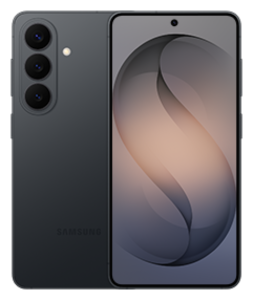
- Android: swipe down and check Mobile data is on. Make sure Airplane mode is off.
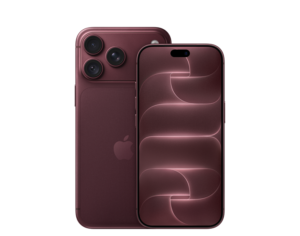
- iPhone: look for Settings > Mobile Service (or Cellular) and check Mobile Data is on.
2. Do you have a package left?
Your data allowance may have run out or your package may have expired. See how to check your balance and remaining data, or use your operator’s app. If you need a new one, see how to choose the right mobile package.
3. Check the signal
Very weak signal gives slow or no data. Move near a window or outdoors. If you only have 3G or 4G in your area, a 5G setting may cause drops.
4. Toggle Airplane mode
Switch Airplane mode on, wait ten seconds, then off. This forces the phone to reconnect to the network.
5. Restart the phone
A restart fixes many network glitches.
6. Re-seat the SIM
Switch off, take the SIM out, wipe it with a dry cloth, put it back and switch on. On a dual SIM phone, check that mobile data is set to the SIM that has the package.
7. Check data restrictions
- Android: look for Data Saver and for background data restrictions on the app that is failing.
- iPhone: look at the app’s permission under Settings > Mobile Service to see if it is allowed to use mobile data.
8. Reset network settings
This clears saved Wi-Fi networks and network settings, but not your files.
- Android: look in Settings > System > Reset options.
- iPhone: Settings > General > Transfer or Reset iPhone > Reset > Reset Network Settings.
9. Ask your operator
If the problem is only on one SIM, or in one area, contact your operator through its app or website. Ask whether there is an outage and whether your SIM is active and registered.
Reduce the load
If data runs out too fast, see how to reduce mobile data usage.